Author Archives: jay

How can I upgrade my hosting plan?

If you are running low on certain resources in your WebHost4Life hosting account, you can explore available options for upgrading.You have two main options:

  1. Upgrade specific features of your current plan, such as disk space, the number of hosted domains, email accounts, and more.
  2. Upgrade to a more advanced package (if available), which provides more resources and additional features.

Both options can be accessed from the Account Information section on the left side of your Control Panel.

* If you do not see the Add/Upgrade Services menu, please go to Help Center > My Tickets to open a support ticket and request assistance from our support team.

Upgrade to a New Package

The Change/Upgrade Plan option allows you to move to a package with more resources. All available packages are displayed along with their features and pricing.

To upgrade:

  1. Select the package you want.
  2. Choose your preferred payment method.
  3. Click Continue to proceed to the payment page and fill in your payment information.

If none of the listed payment options are suitable, please see: [Alternative Payment Options].

Upgrade Specific Features

The Add/Upgrade Services link lets you enhance certain features of your existing package. You can choose from the following available upgrades:

  • Hosted Domains – this upgrade allows you to host more domain names in your account
  • Subdomains – this upgrade allows you to create more subdomains; (For more information, refer to: What is a subdomain and how do I create one?)
  • IP Addresses – this upgrade allows you to purchase a dedicated IP address. (For more information, refer to: What is a dedicated IP and do I need one?)
  • SSH – this upgrade allows you to have SSH access to the server; (For more information, refer to: What is SSH?)
  • MySQL Databases – this upgrade provides you with additional MySQL databases. (For more information, refer to: What is a MySQL database?)
  • MySQL Quota – this upgrade provides you with additional disk space for your MySQL databases
  • PostgreSQL Databases – this upgrade provides you with additional PostgreSQL databases. (For more information, refer to: What is a PostgreSQL database?)
  • PostgreSQL Quota – this upgrade provides you with additional disk space for your PostgreSQL databases
  • Disk Space – this upgrade provides you with additional storage on the server for your files and emails
  • Traffic – this upgrade allows you to increase the monthly traffic limit
  • Email Addresses – this upgrade allows you to create more e-mail accounts
  • FTP Accounts – this upgrade allows you to create more FTP accounts. (For more information, refer to: What is an FTP account and (why) do I need different FTP accounts?)
  • Backup – By default, we keep a backup of your account only if the data is below 5 GB. This upgrade allows you to increase the backup limit
  • Cronjobs – this upgrade allows you to set up more cron jobs. (For more information, refer to: What is crontab?)
  • CPU Usage – this upgrade allows you to increase the CPU usage limit of your account. (For more information, refer to: What is meant under CPU usage and how do I monitor it?)

Next to each feature, there is a drop-down menu that allows you to choose the quantity that you wish to purchase. Next to it you’ll also see the monthly price, the remaining period and the total price that you’ll have to pay for the particular upgrade. You can make multiple upgrades at the same time.

Once you select all the services that you wish to add, you have to choose the payment method you would like to use and click on the Continue button to proceed to the payment page where you will have to fill out your payment information. If none of the payment options listed is suitable for you, please refer to this article: Alternative payment options.
How to Enable Memcached on WordPress

In this guide, we’re going to use the free extension W3 Total Cache to configure WordPress with Memcached.

If you’re already using another extension such as WP Super Cache, you’ll need to deactivate this and install the W3 Cache in order to follow this guide.

Here are the steps to follow to configure W3 Total Cache with Memcached:

1. Sign in to your WordPress dashboard
2. In the main menu, go to Performance then click on General Settings
3.  Activate Memcached for the following options:

– Page Cache Method
– Minify Cache method
– Database cache method

-> Save the settings

For Memcached hostname:port / IP:port use: /home/sys/memcached.sock:0

Save the settings and you’ve successfully enabled memcached on your WordPress website.

How to use Memcached?

The Memcached system is used by some of the most traffic heavy sites such as YouTube, Facebook, Twitter.

It is also supported by some popular CMSs such as Drupal, Joomla, and WordPress.

To use Memcached with PHP, please enable memcached extension from the control panel at Advanced -> PHP Settings -> Edit php.ini -> memcached On.

To have Memcached enabled your plan needs to have Memcached instances available. In case you need to add one or more, you can purchase it as an upgrade from the Add/Upgrade service(s) section in the hosting control panel.

Each instance goes with 16 MB of memory which is why the Memcached instances go with Memcached memory.

Important: many applications require host and port to link them with Memcached. On our system the Memcached works on a Socket instead of Port.

In this case you need to use

Memcached hostname(IP): unix:///home/sys/memcached.sock
Memcached Port: 0

Example: $memcached->addServer(‘unix:///home/sys/memcached.sock’, 0);

Why my website is loading slow?

In this article we will cover some of the reasons why your website loading is slow.

Unoptimized Images
A large volume of unoptimized images is usually the most common reason behind website slowness. High-resolution images can consume lots of bandwidth while loading. Uploading larger sized images and then scaling them down can unnecessarily increase the size of your web page – causing your website to load slowly.

The image format is another important factor to consider. For example, JPEG images are much smaller in size compared to other image formats like PNG or GIF. Quite naturally, your web page will load faster if you are using JPEG images instead of PNG/GIF.

Solutions:

– Check the file size of your images, anything above 1MB is really unacceptable.
– Use JPEG instead of PNG, especially for larger images. Icons are ok.
– Use waterfall tests to easily scan image sizes and take corrective action.

JavaScript Issues
The availability of JavaScript/jQuery plugins has made it really convenient to add dynamic content to websites. However, if implemented incorrectly, JavaScript can cripple your website’s page load speed.

Solutions:

– Audit your JavaScript scripts to see what you really need and remove the rest.
– Consider using something like Google Tag Manager – a single script for all your tools.

Excessive HTTP Requests
Having loads of JavaScript, CSS, and image files can lead to too many HTTP requests. When a user visits your web page, the browser performs several requests to load each of these files – which can significantly reduce the page load speed.

Solutions:

– Reduce the number of files on your pages where possible. Includes CSS, images, javascript.
– Minify your CSS and Javascript files reduces the number of total files users will have to download.

Not Making Use of Caching
Whenever you visit a website, certain elements are stored in a cache, so the next time you visit the site it can easily access those parts and load much faster. With caching, instead of your browser having to download every single resource, it only has to download a few of them.

By turning on caching you can considerably improve your site’s loading for return visitors. If you’re using a CMS like WordPress you can install a plugin like W3 Total Cache, either of which will let you enable sitewide caching, or caching of certain site elements.

Another great tool for speeding up dynamic database-driven websites is Memcached. Memcached reduces that load by storing data objects in dynamic memory.
For more details see the following articles as well:

– How to use Memcached? 
– How to Enable Memcached on WordPress? 
– How to Enable Memcached on Joomla ? 


Too Many Ads
No doubt display advertisements are great for monetizing your websites traffic.

But that shouldn’t come at the cost of compromised performance or user experience. Don’t let too many ads be another reason why your website is slow!

The most obvious impact of overloading your website with advertisements is the addition of HTTP requests, which would need additional processing time.

Especially the rich media ads – like pop unders, interstitials and auto downloads – may create hundreds of HTTP requests making your website unresponsive.

How to add SSL for my domain/subdomain – a step-by-step guide

SSL is used to secure the connection between your website and the customer’s computer. It is recommended when you have an online form which gathers personal or sensitive information from your website users, such as billing and registration details, for example.

Although it is not a definitive requirement to have SSL in such cases, it is a way to protect the data of your users and it is valued and even demanded by many customers.

To activate SSL for your domain (or subdomain) you need to install an SSL certificate for it. To be able to install SSL for any domain it must have a dedicated IP address. Learn how to get a dedicated IP in this article: How do I get a dedicated IP for my domain/subdomain?

Assuming that you already have a dedicated IP for your domain, here is what you must do to activate SSL:

Step 1: Purchase an SSL certificate
You can purchase an SSL certificate by going to My Domains > SSL Certificates > Order SSL Certificate button on your web hosting control panel. Input the following details in the order form:

CSR Details

Hostname: Select a domain name from the drop-down list for which you want to order a certificate.
Organization: Type in the exact legal name of your organization. Do not abbreviate the name of your organization. 
Organization Unit: Specify the exact department of your organization (optional).
Country: Select your country from the list.
City: Type in your city.
State: The state or province where your organization is legally located. It should not be abbreviated.
E-mail: Type in your personal e-mail address.

Note that none of the following characters can be used in the details: < > ~ ! @ # $ % ^ * / ( ) ?.,& 
 
Contact Info

All fields are pre-filled with the details you provided for your hosting account.

*If you choose to use a different hostname, you must select an “Approver E-mail” at the bottom, which must be an e-mail account hosted here (one created in the E-Mail Manager on your web hosting control panel).

Purchase Details

Choose a shared IP address or a dedicated IP for which the SSL certificate will be issue.

Select the registration period – 12 months.

Make sure you read the User Agreement and select the checkbox next to “Accept User Agreement“, then select a payment method and finally click on the “Continue” button at the right. You will be forwarded to a billing gateway page to submit the payment.

Once your payment has been submitted, you will be able to see your newly ordered certificate in My Domains > SSL Certificates menu in your web hosting control panel. As soon as the status is changed to “Active” you can apply the certificate to your domain.


Step 2: Install an SSL certificate

a) Install an SSL certificate purchased from us

Go to My Domains > SSL Certificates and find your domain (or subdomain) in the list (Domain column) and click on the View SSL Certificate link (Action column) on the right. On the new “SSL Certificate Configuration” popup window, select the domain for which you want to install the certificate.

After that you must select IP from the drop-down list.

When ready, press “Activate SSL certificate” button.
—————————————————————————————
b) Request Let’s Encrypt certificate

Go to My Domains > SSL Certificates and find your domain (or subdomain) in the list (Domain column) and click on the Add  SSL Certificate link (Action column) on the right. On the new “SSL Certificate Configuration” popup window, select the “Request Let’s Encrypt certificate” option.

After that you must select IP from the drop-down list.

When ready, press “Activate SSL certificate” button.

—————————————————————————————
c) Install an SSL certificate if you already have one

Go to My Domains > SSL Certificates and find your domain (or subdomain) in the list (Domain column) and click on the Add SSL Certificate link (Action column) on the right. On the new “SSL Certificate Configuration” popup window, select the option to “Upload SSL certificate” – as soon as you select this option, 3 text fields appear under the form:

Private key
SSL certificate
CA

After you fill in all fields, you must select IP from the drop-down list.

When ready, press “Activate SSL certificate” button.

If you have followed this tutorial strictly, now you should have SSL activated for your domain.

Can I use a domain name I registered with another company (registrar)?

When you register a domain name you reserve the name for a period of time (usually a year or two).

It is not necessary to have your domain name registered with the same company that would be hosting your website (and thus your domain).

However, you have to point the domain to your hosting space to make it work properly. This is done by applying your hosting company’s name servers to your domain name.

Inside the domain control panel provided by your registrar (the company you registered the domain with) you should have the option to change the name servers, which may also be referred to as NS or DNS change.

To properly host a domain registered with another company with us, you must:

  1. Add the domain to your Hosted Domains list (My Domains > Hosted Domains)
  2. Set our name servers for your domain
  3. Wait for the name server change to propagate (usually within 12-24 hours)

Additional information and instructions could be found in the following articles:
– How do I host a domain name?
– What are the correct name servers (DNS) for my domain?

Are Microsoft SQL (MSSQL) or Microsoft Access databases supported?

As a customer-oriented company, we strongly believe that the quality of our services should exceed clients expectations at the lowest possible price.

On account of this, our management team decided to have all our servers running on the open-source platform called Linux – an Operating System that has gained tremendous popularity in the last several years among desktop users, as well as impressive growth on the server market.

This in turn has attracted more interest in the development of reliable and inexpensive (free, in most cases) products ranging from desktop applications and office suites to high-end database solutions.

The MSSQL and Access databases, developed by Microsoft, run exclusively on Windows-based servers, such as Windows Server 2003 and Windows Server 2008.

To be fair, there are applications that could theoretically provide MSSQL and Access support under Linux with questionable results and none of those meet our quality standards.

The alternative our company offers is MySQL – the fast, cross-platform database from ”MySQL AB”. Its portability means that you can use it on a variety of Operating Systems – Windows, Linux, Unix, Apple XServe, IBM mainframe, and many more.

If you have already developed your application using a MSSQL or an Access database, we can recommend you the following three options for conversion to MySQL:

Option 1: MSSQL2MySQL https://www.mysql.com/why-mysql/white-papers/guide-to-migrating-from-sql-server-to-mysql/

Option 2: Microsoft Data Transformation Services (DTS). Microsoft has included a data manipulation tool within the SQL server. It provides options for data export in various formats and systems. For more information on how to use this feature, please refer to these documents from Microsoft.com:

http://msdn.microsoft.com/en-us/library/cc917688.aspx

http://technet.microsoft.com/en-us/library/ms345120(SQL.90).aspx

Option 3: Similar to Microsoft DTS, Access has its own tool for table export in many formats (including ODBC). All you need to do here is right-click the table in Access and select ‘Export’. A new wizard will appear, guiding you through the conversion process.

I want to create multiple usernames/passwords for a certain directory, how do I do this?

There is a tool that allows you to set password protection for a specific folder. Just go to the Advanced > Password Protection section of the Web Hosting Control Panel.

Click on the New Password Protected Area button.

Select your domain from the “Drop-down menu” or type the full path to the protected folder in the “Path” field (e.g. /www/my-best-domain.com/protected_folder). Enter the username and the corresponding login password. Click the Add PPA button to confirm.

If you need to set more users, repeat the above steps, just use different usernames.

IMPORTANT: If there is an .htaceess file within the protected folder, the protection would not work, so either remove it or consider another password protection technique.

How to unzip files with the File Manager?

Uploading a lot of files to your hosting space could be a burden if your Internet connection gets interrupted.

Besides, your FTP client opens a new connection for each file in the upload queue, thus taking more time for the files to upload.

The more the files you are trying to upload are, the longer the upload time will be. For that reason, we have included a useful function in the File Manager tool in your Web Hosting Control Panel – unzipping an archive that has been uploaded on the server.

If you want to upload a whole website, you can archive it using a freeware archivator like WinRar or 7Zip.

Upload the file in the corresponding folder, for example /www/my-best-domain.com either via FTP or via the File Manager (Files > File Manager) tool.

Then open the File Manager tool and navigate to the folder where you uploaded the file. You should see the archive that you have just uploaded.

Right Click on the file name – a small window opens, prompting you what you would like to do.

All options are listed in a drop-down menu.

You can open the file with a WYSIWYG editor, a plain text editor or in a browser.

To unpack the archive file in the current folder, you have to select the Extract option.

You can also zip (create an archive) a whole folder by clicking on the Compress icon. The supported archive file types are .zip, .rar, and .tar.gz.

By choosing the Zip/Archive option from the drop-down menu, you can create a zip file of all the files within that folder, making it easier to download the entire folder at once.

How to change the permissions of a file or a folder?

Sometimes when you install a script manually, you would see an instruction “change the permissions of file.php to 666“, for example.

Those permissions are associated with the read, write and execute rights that the file owner, group members and everybody else has for that file.

There are several ways to change the permissions of a file or a folder – through the File Manager section, SSH, or through an FTP client, such as FileZilla.

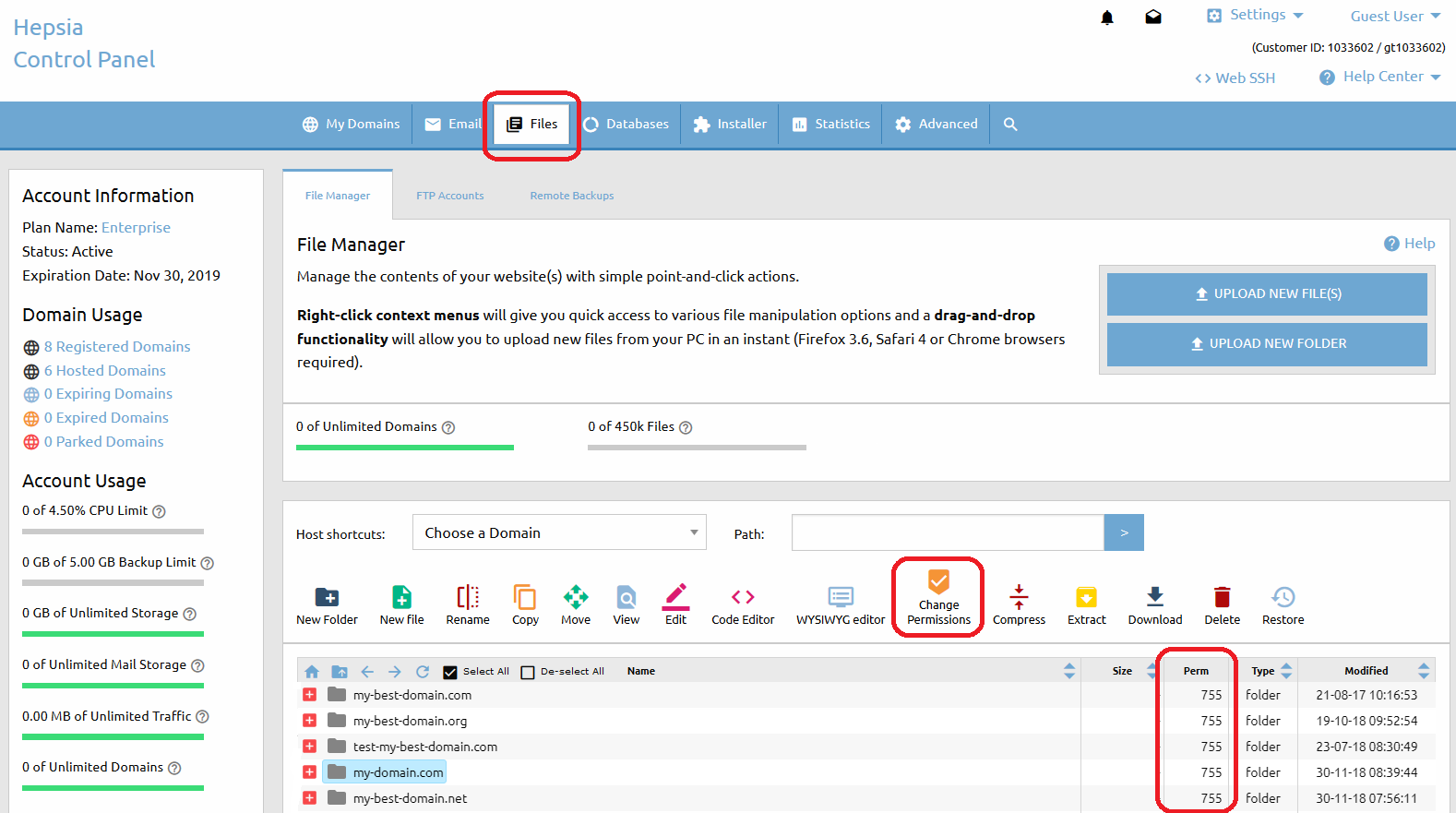
If you go to the File Manager section of the Web Hosting Control Panel (Files > File Manager), you will see a column “Perm“.

There is a value for every file or folder in your account, with default values 644 for files and 755 for folders.

If you want to change the permissions of a particular file or folder, simply click on the Change Permissions icon from the top list menu or click right button of the mouse. A drop-down menu will appear and you have to choose Change Permissions. A small window will show up and you’ll be able to choose the new value.

If you want to change the permissions of multiple files or folders, you have to select them first, then select the Change Permissions icon located at the top of the File Manager section.

Click on the Change button for the changes to take effect. 

An alternative to using our File Manager tool would be changing the file permissions using an FTP client.

That option would also give you the opportunity to change the permissions of all subdirectories and files within a folder recursively. 

We recommend FileZilla, a freeware FTP client. Here is how you can change the permissions using that client: 

First, connect to your account on the server via FTP to see a list of all the files and folders that you have.

To change the permissions, right-click on a file and choose the File Attributes option. You can type a numeric value or choose the Read/Write/Execute permissions marking the checkboxes.

If you choose the File Attributes option when you right-click a folder, you will see an extra option – Recurse into subdirectories.

You can change the permissions of all the files, all the folders, or both, as long as they are located in the folder you have just clicked on. 

Last, but not least, you can change the permissions via Secure Shell (SSH) if it is active for your account. The command is:

chmod number filename

For example:

chmod 644 example.php

For additional details about SSH – how to activate and use it, refer to this article: What is SSH, how do I activate and use SSH?