Managing your MySQL databases is simple and efficient with WebHost4Life. Using phpMyAdmin, you can access, edit, and maintain your database directly through a web browser.
1. Accessing Your Database
- Log in to your WebHost4Life Control Panel.
- Navigate to Databases > MySQL Databases.
- Click on the name of the database you want to access.
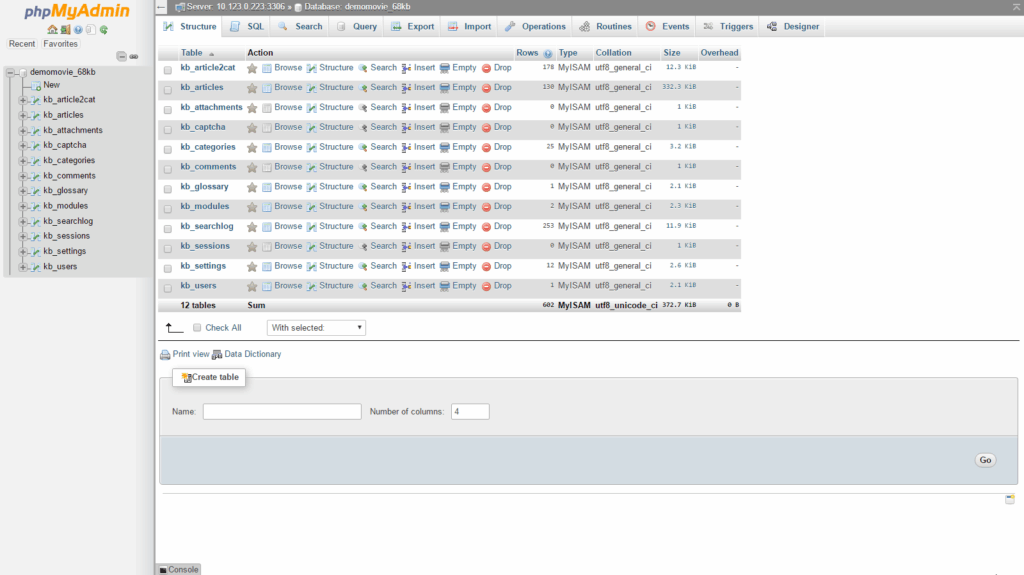
A new window will open displaying the phpMyAdmin home screen.
2. Understanding phpMyAdmin
phpMyAdmin is a web-based application that allows you to manage every aspect of your database, including:
- Creating tables, columns, and rows manually
- Editing existing data
- Importing and exporting data
- Running SQL queries
3. Viewing Database Tables
- Your database tables are listed in both the main panel and the left sidebar.
- If tables do not appear immediately, select your database from the drop-down menu in the left panel.
- To open a table, click its name in the left sidebar.
4. Editing Table Data
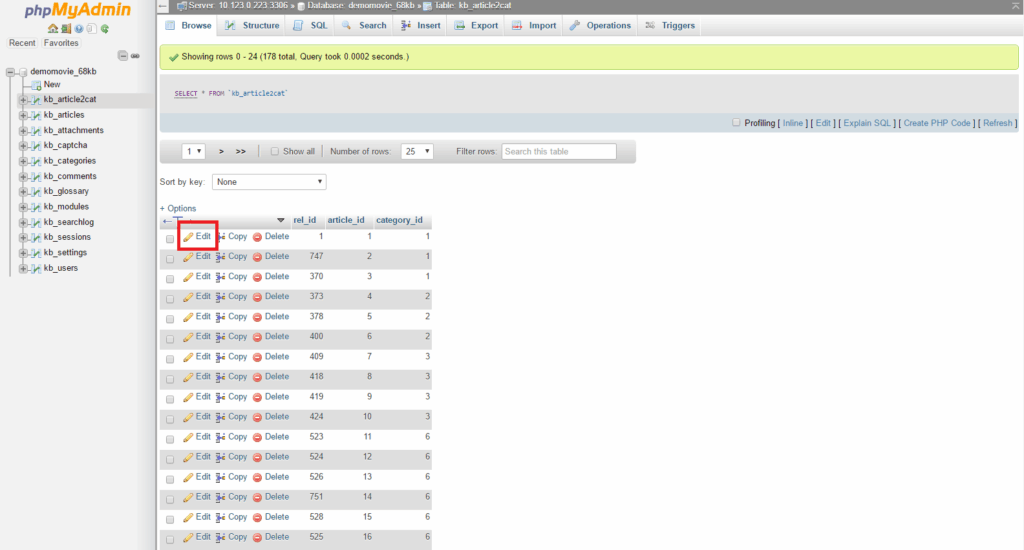
- After opening a table, you will see its columns and rows containing data.
- To edit a row, click the pencil-shaped icon next to it.
- A form will appear where you can modify the data for the selected row.
- Make your changes and click the Go button to save them.
Note: Each column has a specific data type, which must be followed when editing.
5. Executing SQL Queries
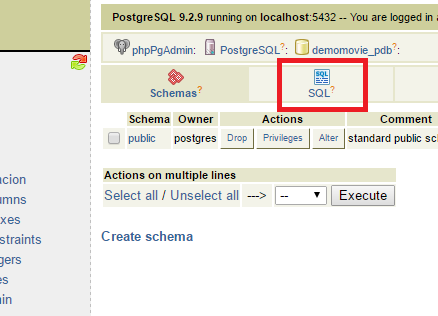
- Click the SQL tab at the top of phpMyAdmin.
- Enter your query in the Run SQL query/queries field.
- Click the Go button to execute the query.
6. Importing and Exporting Databases
phpMyAdmin also allows you to create backups and restore databases:
- To export (back up) a database, see: How to Backup (Export) Your MySQL Database
- To import (restore) a database from a backup, see: How to Restore (Import) Your MySQL Database from a Backup
With WebHost4Life hosting, managing your MySQL databases is fast, secure, and fully browser-based, giving you complete control over your website’s data anytime, anywhere.