Author Archives: Best Web Hosting

How to Access and Edit Your MySQL Database Online with phpMyAdmin

Managing your MySQL databases is simple and efficient with WebHost4Life. Using phpMyAdmin, you can access, edit, and maintain your database directly through a web browser.

1. Accessing Your Database

  • Log in to your WebHost4Life Control Panel.
  • Navigate to Databases > MySQL Databases.
  • Click on the name of the database you want to access.

A new window will open displaying the phpMyAdmin home screen.

2. Understanding phpMyAdmin

phpMyAdmin is a web-based application that allows you to manage every aspect of your database, including:

  • Creating tables, columns, and rows manually
  • Editing existing data
  • Importing and exporting data
  • Running SQL queries

3. Viewing Database Tables

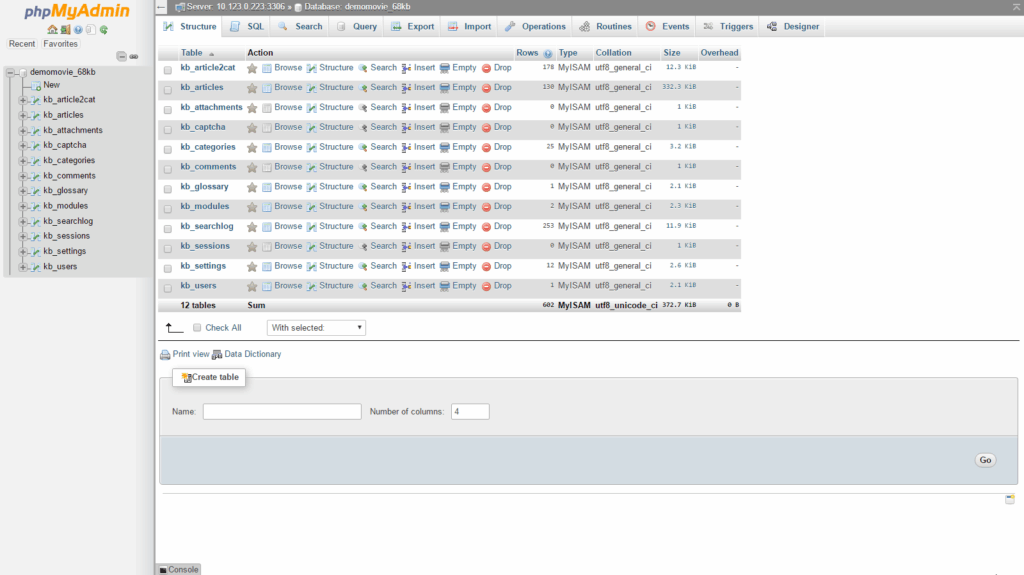
  • Your database tables are listed in both the main panel and the left sidebar.
  • If tables do not appear immediately, select your database from the drop-down menu in the left panel.
  • To open a table, click its name in the left sidebar.

4. Editing Table Data

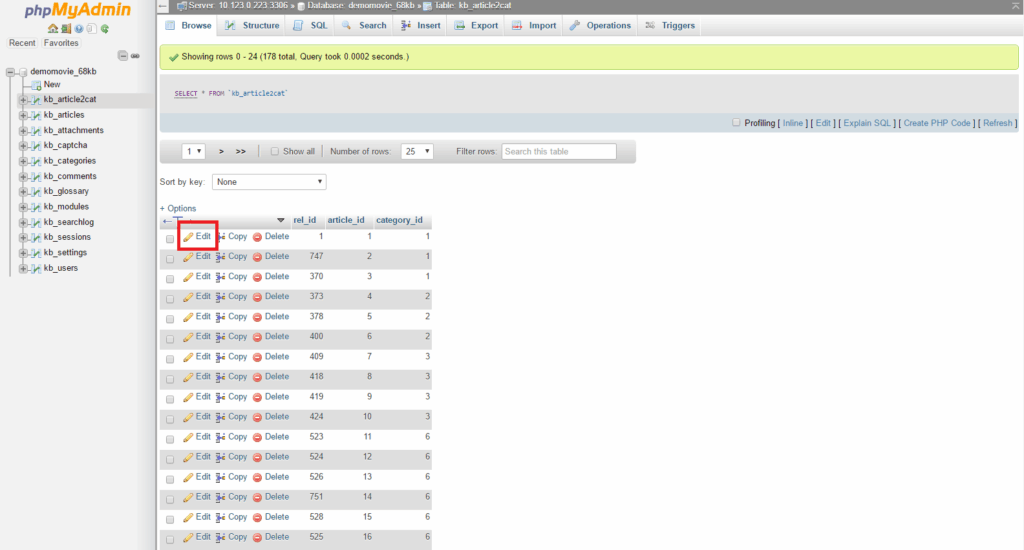
  • After opening a table, you will see its columns and rows containing data.
  • To edit a row, click the pencil-shaped icon next to it.
  • A form will appear where you can modify the data for the selected row.
  • Make your changes and click the Go button to save them.

Note: Each column has a specific data type, which must be followed when editing.

5. Executing SQL Queries

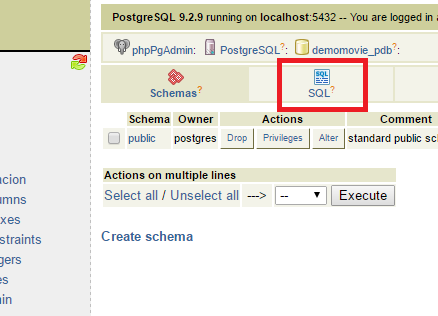
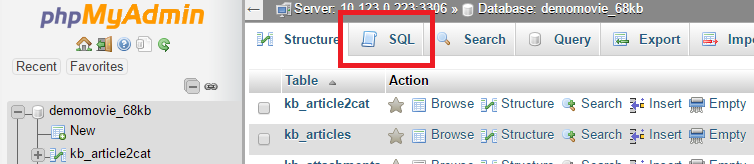
  • Click the SQL tab at the top of phpMyAdmin.
  • Enter your query in the Run SQL query/queries field.
  • Click the Go button to execute the query.

6. Importing and Exporting Databases

phpMyAdmin also allows you to create backups and restore databases:

With WebHost4Life hosting, managing your MySQL databases is fast, secure, and fully browser-based, giving you complete control over your website’s data anytime, anywhere.

How to Restore (Import) Your MySQL Database from a Backup

You can easily manage and restore your MySQL databases online using the phpMyAdmin tool, which is fully integrated into your WebHost4Life Control Panel. This tool allows you to access, export, and import databases quickly and securely.

To access phpMyAdmin:

  1. Go to Databases > MySQL Databases in your Control Panel.
  2. Locate your database in the list and click on the phpMyAdmin icon next to it.

A new window will open with the phpMyAdmin home screen. In the left-hand frame, click on your database name to select it.

In the top-right frame, you will see several icons. Click on the SQL icon (the second one) to open the query window.

To import your database backup (dump file):

  1. Click on the Import Files tab in the query window.
  2. Press the Choose… button and select the backup file from your local computer.
  3. Click Go to start importing the database.

Important: Using this method, you can import dump files up to 20MB in size. For larger files:

  1. Upload the file to your WebHost4Life hosting account via FTP (see our guide: How to Connect via FTP and Upload or Download Files on WebHost4Life).
  2. Submit a support ticket in your WebHost4Life Control Panel, and our technicians will assist you with importing the file.

With WebHost4Life hosting, restoring MySQL databases is simple, secure, and reliable. Our hosting services provide full MySQL support, high-performance servers, and expert technical assistance to ensure your website and applications run smoothly. Try WebHost4Life cloud hosting today and experience hassle-free database management for your site!

How to Backup (Export) Your MySQL Database with WebHost4Life

You can easily manage your MySQL databases online using the phpMyAdmin tool, which is fully integrated into your WebHost4Life Control Panel. This tool allows you to access, export, and import databases quickly and securely.

To access phpMyAdmin:

  1. Go to Databases > MySQL Databases in your Control Panel.
  2. Locate your database in the list and click on its name.

A new window will open with the phpMyAdmin home screen. In the left-hand frame, you will see your database—click on its name to view its contents.

The right-hand frame will display a list of all the tables in your database, along with actions and preferences you can perform.

To back up (export) your database:

  1. Click on the Export link above the table list.
  2. Scroll down and select the Save as file option.
  3. Click Go to start the download.

You will be prompted to choose a location on your local computer to save the backup.

The exported file can later be used to restore your database through phpMyAdmin, ensuring that your data is always safe and easily recoverable.

With WebHost4Life hosting, managing MySQL databases is simple, secure, and reliable. Try WebHost4Life hosting today and enjoy full MySQL support, high performance, and top-notch customer service for your website!

What Is a MySQL Database and How to Create It

MySQL is one of the most popular systems for storing and managing data. It organizes information in a structured way, allowing websites and applications to work efficiently.

Most web applications – like WordPress, Joomla, Drupal, or osCommerce – rely on MySQL databases to store content, settings, and user data. If your website or app needs a database (especially PHP-based applications), it will likely require MySQL.

A MySQL database stores data in tables made of columns and rows. When your website needs specific information, it sends a query to the database to retrieve it.

WebHost4Life hosting fully supports MySQL databases, making it simple to create, manage, and use databases for your website or web application. With WebHost4Life, you get reliable database performance and full control via your hosting Control Panel.

To create a MySQL database in your WebHost4Life account:

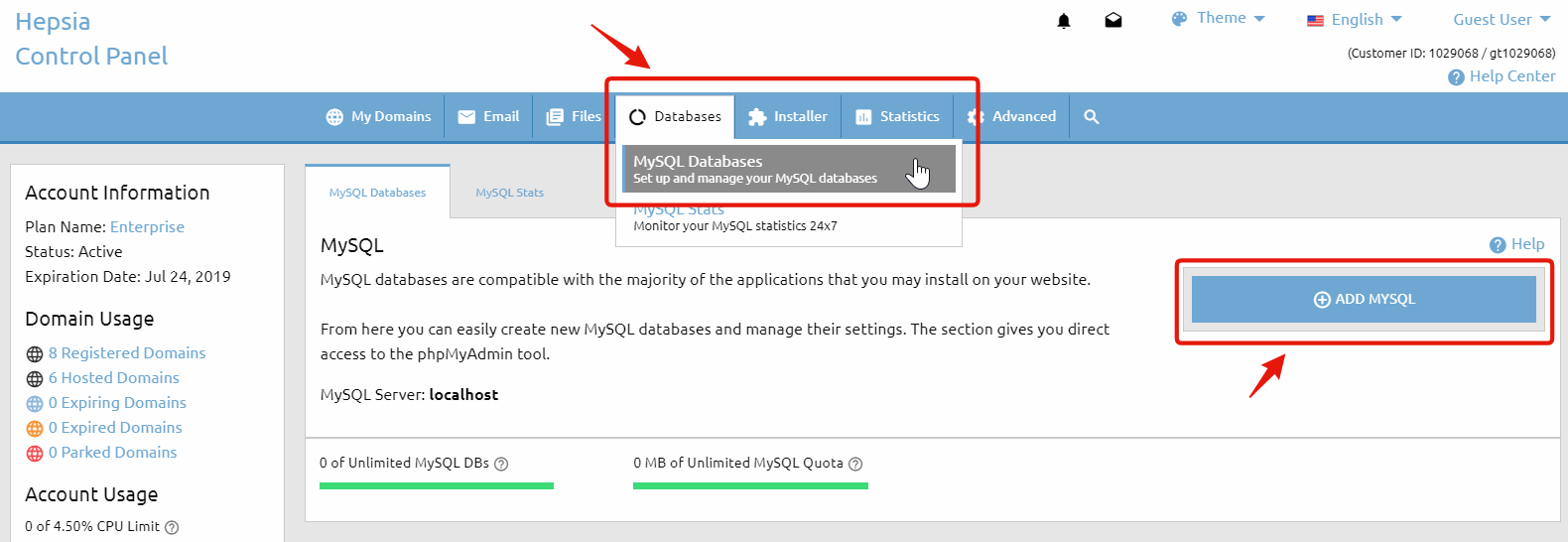
  1. Go to Databases > MySQL Databases in your Control Panel.
  2. Click the Add MySQL tab on the right-hand side.

Typically, a separate database is created for each web application you install. This makes it easier to manage your applications individually.

In the MySQL Databases section of your Control Panel, you can view a list of all the MySQL databases you have.

On our servers, the database name and username are the same. For example, if your database is named account_database, the username will also be account_database.

Each database can only have one user, which is created by default. New users cannot be added. The default user has full privileges for that database.

When configuring a script or application to use one of your databases, you will need the following:

  • Database name
  • Database username (same as database name)
  • Password
  • MySQL host/server

You can find the MySQL host listed in the table of your existing databases—it is usually localhost.

With your database ready, your website or application can start storing and retrieving data quickly and securely. Get started today with WebHost4Life hosting and enjoy full MySQL database support for your website!

How to Connect to FTP with a Web Browser (e.g., Internet Explorer) on WebHost4Life

There are several ways to establish an FTP connection to manage your website files hosted on WebHost4Life. The most common method is by using an FTP client (program). You can learn more about this in our related guide: How to Connect via FTP and Upload/Download Files on WebHost4Life.

However, if you don’t have an FTP client installed — or prefer not to download additional software — there’s an even simpler way. You can connect to your hosting account directly through your web browser.

To do this, open your browser and enter the following address format in the address bar:

ftp://username:password@your-domain.com

In the example above, replace “username” and “password” with your actual FTP login details, and “your-domain.com” with your domain name hosted on WebHost4Life.

If you encounter any issues connecting via FTP, your local firewall may be blocking port 21, which is required for standard FTP connections. In that case, try disabling the firewall temporarily or adding an exception for port 21.

Why Choose WebHost4Life for Your Hosting?

With WebHost4Life, you get fast, reliable, and secure web hosting with full FTP and SFTP support — so you can manage your files however you prefer. Whether you use an FTP client or your web browser, WebHost4Life’s easy-to-use Control Panel gives you complete control over your website files.

Enjoy:

  • Full access and flexibility to upload, download, and manage files anytime.
  • 24/7 technical support, ready to help with FTP setup or troubleshooting.
  • Powerful, secure servers ensuring your data stays protected and your website loads fast.

WebHost4Life makes website management simple — giving you all the tools you need to run your site efficiently, without limitations.

How to Connect via FTP and Upload or Download Files on WebHost4Life

If you’re hosting your website with WebHost4Life, managing your files via FTP is quick, secure, and hassle-free. FTP gives you direct access to your hosting account, making it easy to upload your website, download backups, or make quick edits whenever you need. With the right setup, transferring files becomes simple and efficient.

FTP is especially useful when moving large files or a large number of files at once. To get started, you’ll need an FTP client – a software program that connects your computer to your WebHost4Life hosting account. Popular FTP clients include FileZilla, SmartFTP, CuteFTP, and Total Commander. We recommend FileZilla because it’s free, user-friendly, and fully compatible with WebHost4Life hosting, making your file management experience seamless. Here’s a step-by-step guide to get started.

The basic settings, which you need to know in order to connect to your hosting account via FTP can be found in the FTP Accounts section of your hosting Control Panel (Files > FTP Accounts). The settings that you need to connect via FTP are:

  • hostname/server: This is usually one of your domains or subdomains but it could also be the shared IP address of the server or your dedicated IP.
  • username: This is the FTP login name used for authentication. Your default (first) FTP account has the same username as the one you use to log in to the hosting Control Panel.
  • password: Initially the password for your default FTP account is the same as your hosting Control Panel password, but it could be changed via the FTP Accounts section.
  • port: Usually it is set by default in your FTP client to 21. This is also the port we use for FTP transfers.

If you use your default FTP account to connect via FTP, you should get connected to the www/ directory. Inside this directory are the main folders of your domains.

WebHost4Life allows you to create additional FTP accounts with restricted access. For example, if you want to grant someone access only to the /www/my-best-domain.com directory, you must enter “my-best-domain.com” in the access path field. This way the new FTP account would not have access to anything outside the “my-best-domain.com” directory and its subdirectories. You will not be able to access upper level directories like /www/. This way you can create FTP accounts with restricted access for co-workers or other people working on a specific website, without giving them full access to all the files in your account.

Using FTP with Dreamweaver

Dreamweaver requires some additional FTP settings. If you have built your website using Dreamweaver, you will have to enter a “Host directory” in addition to the FTP server, the username and the password. The “Host directory” specifies the location where Dreamweaver should upload the files relative to the directory, which you get connected to using the FTP account in question. So if you use your default FTP account, which connects to the www/ directory and you want to publish your website to www/my-best-domain.com/, you should enter the following as “Host directory“: my-best-domain.com/.

Upload/Download Files

  • Upload Files: Drag files from your local computer to the server window.
  • Download Files: Drag files from the server window to your local computer.

Why Choose WebHost4Life for Your Website Hosting?

With WebHost4Life, managing your website via FTP is simple and secure. Our hosting plans provide:

  • Full FTP and SFTP support for secure file transfers.
  • Easy account management via the intuitive control panel.
  • Reliable performance and 24/7 support, so your site stays online and accessible.

Whether you’re uploading a new website, backing up files, or managing multiple domains, WebHost4Life gives you full control and flexibility. Start hosting with WebHost4Life today and enjoy hassle-free, professional web hosting.

Understanding DNS and DNS Records with WebHost4Life

DNS stands for Domain Name System, the backbone of the Internet that translates human-friendly domain names into IP addresses. This allows servers around the world to locate your website quickly and reliably. With WebHost4Life, managing your DNS is simple, fast, and secure, ensuring your website is always online and accessible.

How DNS Works

When a domain name is entered into a web browser, the first thing that happens is a lookup of the authoritative name server. This server provides essential information about your domain’s DNS zone file.

For example, webhost4life.net might resolve to 192.168.0.1. Every domain and subdomain needs an A/IP record to function properly on the Internet. At WebHost4Life, setting up these records is quick and easy using our intuitive control panel.

Managing DNS Records with WebHost4Life

All your DNS records can be managed from Hosted Domains > DNS Records in the WebHost4Life Control Panel. Here, you can control every aspect of your domain’s settings without needing technical expertise. Our platform ensures that even advanced DNS configurations are straightforward and reliable.

Types of DNS Records

Here are the main types of DNS records you can manage with WebHost4Life:

  • A Record (Address Record) – Assigns an IPv4 address to a domain or subdomain. This is the most common record to map hostnames to the host’s IP address.
  • AAAA Record (IPv6 Address Record) – Maps a hostname to a 128-bit IPv6 address, supporting the transition and coexistence between IPv4 and IPv6 networks.
  • CNAME Record (Canonical Name Record) – Makes one domain name an alias of another, inheriting all the subdomains and DNS records of the original domain.
  • MX Record (Mail Exchange Record) – Maps your domain to mail servers for email routing. With WebHost4Life, email setup is seamless, secure, and reliable.
  • NS Record (Name Server Record) – Defines which DNS servers are authoritative for your domain.
  • SRV Record (Service Record) – Generalized record for newer protocols, making complex service setups easier.
  • TXT Record (Text Record) – Allows insertion of custom text into your DNS records, useful for verification, SPF, DKIM, or other configurations.

Why Choose WebHost4Life for DNS Management

With WebHost4Life, DNS management is faster, safer, and easier than ever:

  • User-Friendly Control Panel: Make changes in just a few clicks, without needing deep technical knowledge.
  • Reliable & Secure: All DNS changes propagate quickly, keeping your website and email running smoothly.
  • Advanced Options: Supports all record types for full control over your domains.
  • Expert Support: Our team is always available to help with any DNS or hosting issues.

Whether you’re a beginner setting up your first website or an experienced webmaster managing multiple domains, WebHost4Life makes DNS management simple, efficient, and reliable.

How to Register Name Servers for a Domain Name at WebHost4Life

Name Servers are essential for pointing your domain to the correct hosting server. If you want to use custom or private name servers for your domain registered with WebHost4Life, you can easily set them up via the Control Panel. There are two ways to register a new Name Server (NS) record for a domain registered with WebHost4Life:

Option 1: Using the Edit Name Servers/WHOIS Column

  1. In your WebHost4Life Control Panel, go to My Domains > Registered Domains.
  2. Locate the domain you want to update and find the Edit Name Servers/WHOIS column. Click on the Edit Name Servers icon.
  3. The Manage DNS pop-up window will appear. Switch to the second tab: Manage Domain-Based NS.
  4. Fill in the NS and IP fields for the new name server.
  5. Click the Register button to save your new NS record.

Option 2: Using the Domain Information Window

  1. Log in to your WebHost4Life Control Panel, go to My Domains > Registered Domains.
  2. In the Domain column, click on the domain name you want to update.
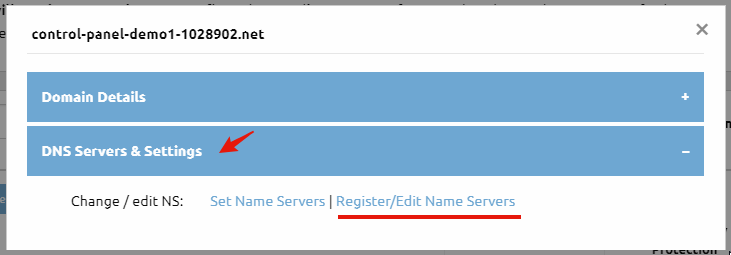
  3. The Domain Information pop-up window will open. Navigate to the second tab: DNS Servers & Settings, and click the Register/Edit Name Servers link.
  4. In the Manage Domain-Based NS tab of the Manage DNS pop-up, fill in the NS and IP fields.
  5. Click the Register button to add your new NS record.

Important Notes

  • Changes to name servers may take up to 24 hours to fully propagate across the internet.
  • You can register multiple NS records for redundancy and better performance.
  • Using WebHost4Life for both domain registration and hosting makes managing your DNS quick and easy.

How to Change the Name Servers of a Domain Name at WebHost4Life

To change the name servers of a domain name, you need to contact the registrar company where the domain is currently registered.

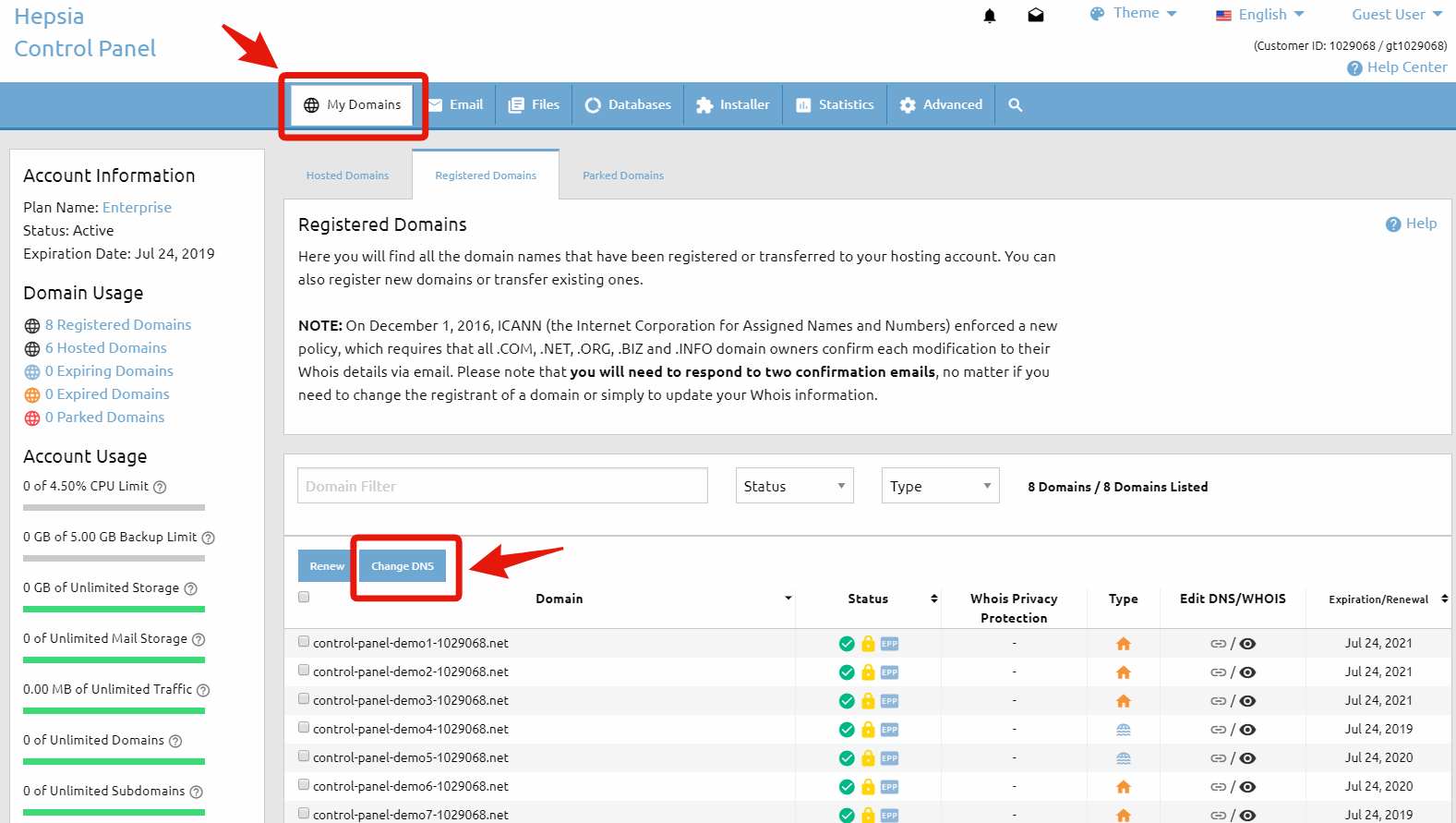
If your domain name is registered with WebHost4Life, you can easily update the name servers through the Domain Manager section of your WebHost4Life Control Panel (My Domains > Registered Domains). There are three ways to do this:

Option 1: Change Name Servers in Bulk

In front of each domain name, there is a checkbox that allows you to select it. Once selected, click the Change DNS button.


Edit name servers

After you click the Change DNS button, you will be redirected to a page where you can enter the new name servers. When you’re done, click the Change NSes button to save the changes.

Important: You can use this option to update the name servers for multiple domain names at once.

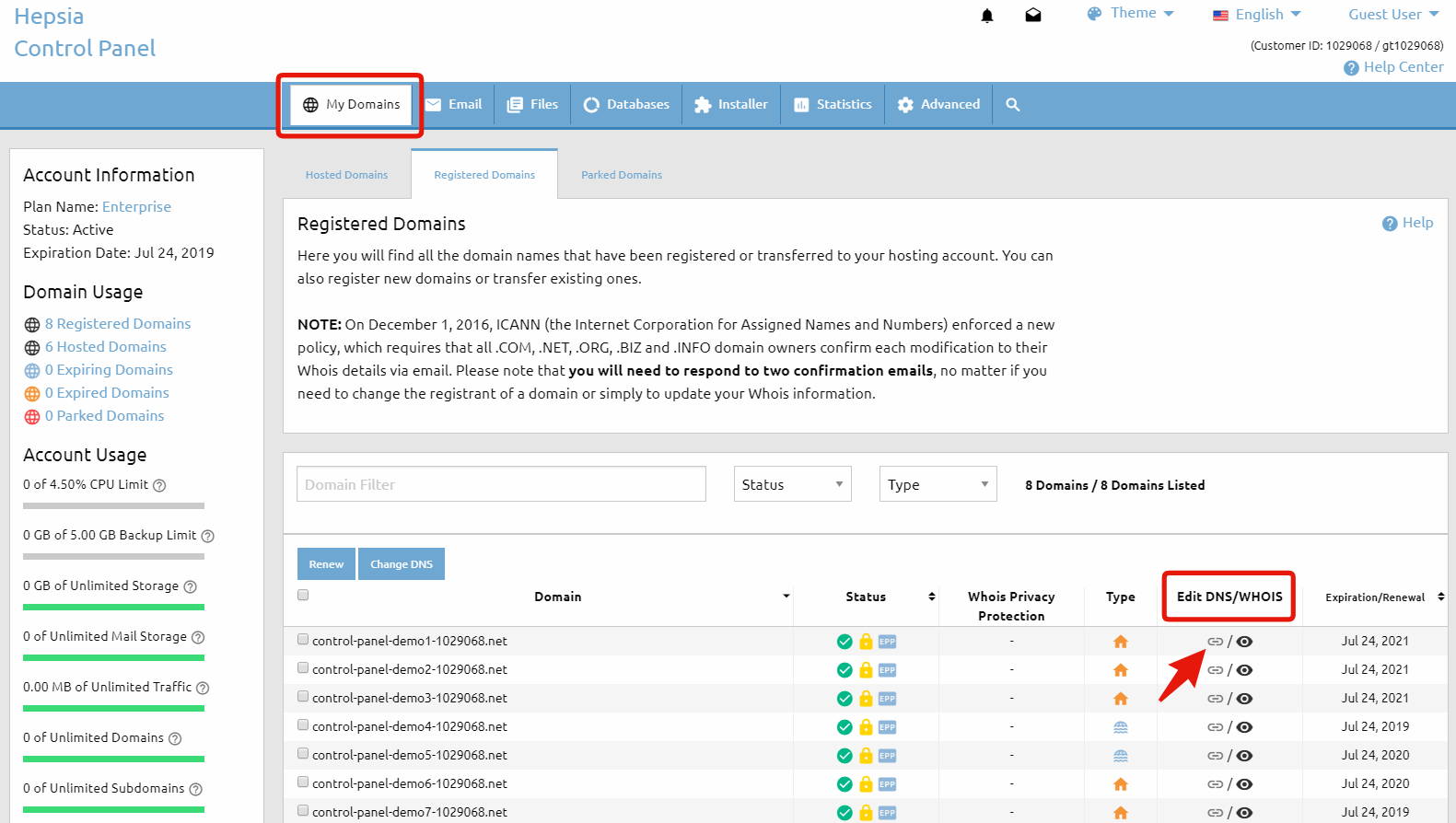
Option 2: Edit via the DNS/WHOIS Column

Next to each domain name, there is a row of icons divided into separate columns. Locate the column named Edit DNS/WHOIS and click the NS Status icon(the one the arrow points to in the image below).


Edit name servers

After you click the NS Status icon, a small pop-up window will appear with two options:

  • Edit the name server settings
  • Register your own private name servers

If you choose the first option, you’ll be redirected to the same page as in Option 1, where you can enter the new name servers.

When finished, click the Change NSes button to save your changes.

To learn more about the second option, please refer to the article: How to Register Name Servers for a Domain Name.

Option 3: Edit from the Domain Information Window

In the Domain column, click the domain name you want to edit.

This will open the Domain Information pop-up window with details for the selected domain name. Locate the DNS Servers & Settings tab and click the Register/Edit Name Servers link.

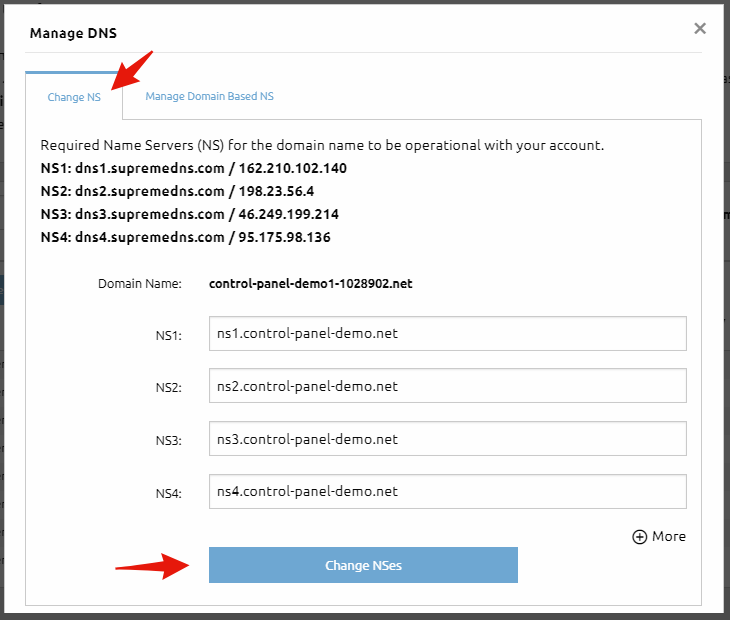
Edit NS

In the Change NS tab of the Manage DNS pop-up window, enter your new name server settings and click the Change NSes button.

Edit NS settings

Important: Name server changes may take up to 24 hours to fully propagate across the internet.

Why Choose WebHost4Life for Domains and Hosting?

With WebHost4Life, you don’t just get a domain – you get a full-featured hosting solution. Our platform allows you to:

  • Easily register and manage domains in one place
  • Update DNS settings and name servers without technical hassle
  • Host websites on secure, high-performance servers
  • Enjoy 24/7 support from a team that knows web hosting

Whether you are launching your first website or managing multiple domains, WebHost4Life provides the tools and support to make domain management simple and reliable.