To change the name servers of a domain name, you need to contact the registrar company where the domain is currently registered.
If your domain name is registered with WebHost4Life, you can easily update the name servers through the Domain Manager section of your WebHost4Life Control Panel (My Domains > Registered Domains). There are three ways to do this:
Option 1: Change Name Servers in Bulk
In front of each domain name, there is a checkbox that allows you to select it. Once selected, click the Change DNS button.
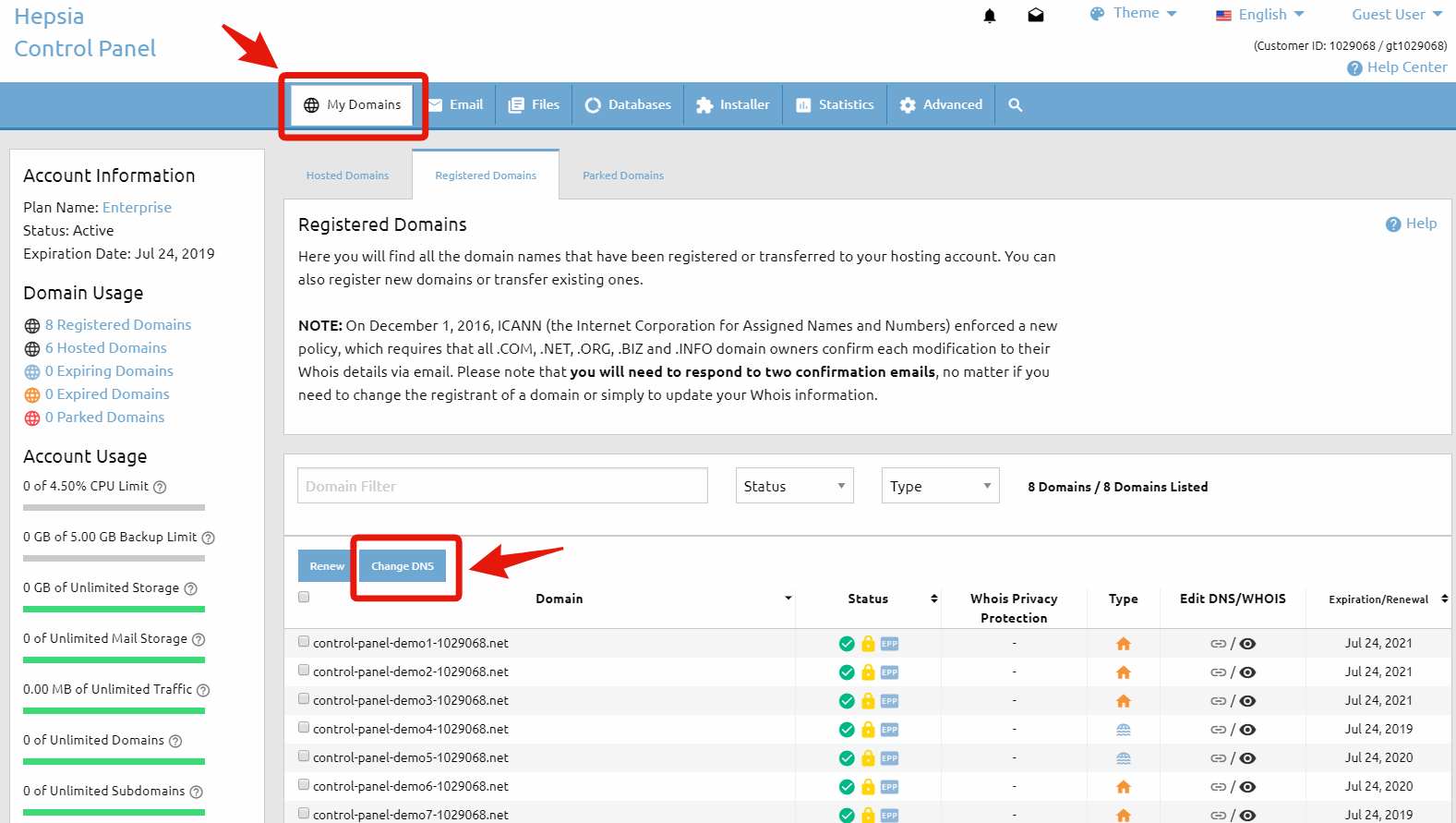
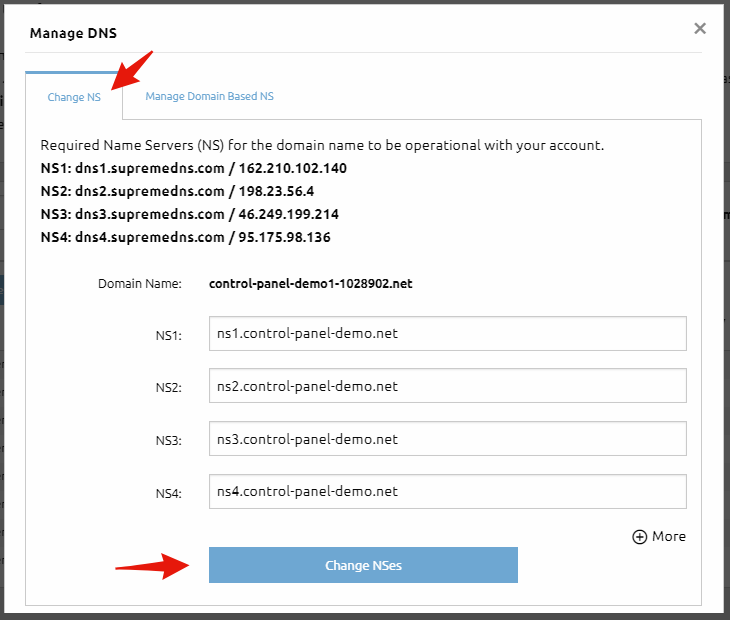
After you click the Change DNS button, you will be redirected to a page where you can enter the new name servers. When you’re done, click the Change NSes button to save the changes.
Important: You can use this option to update the name servers for multiple domain names at once.
Option 2: Edit via the DNS/WHOIS Column
Next to each domain name, there is a row of icons divided into separate columns. Locate the column named Edit DNS/WHOIS and click the NS Status icon(the one the arrow points to in the image below).
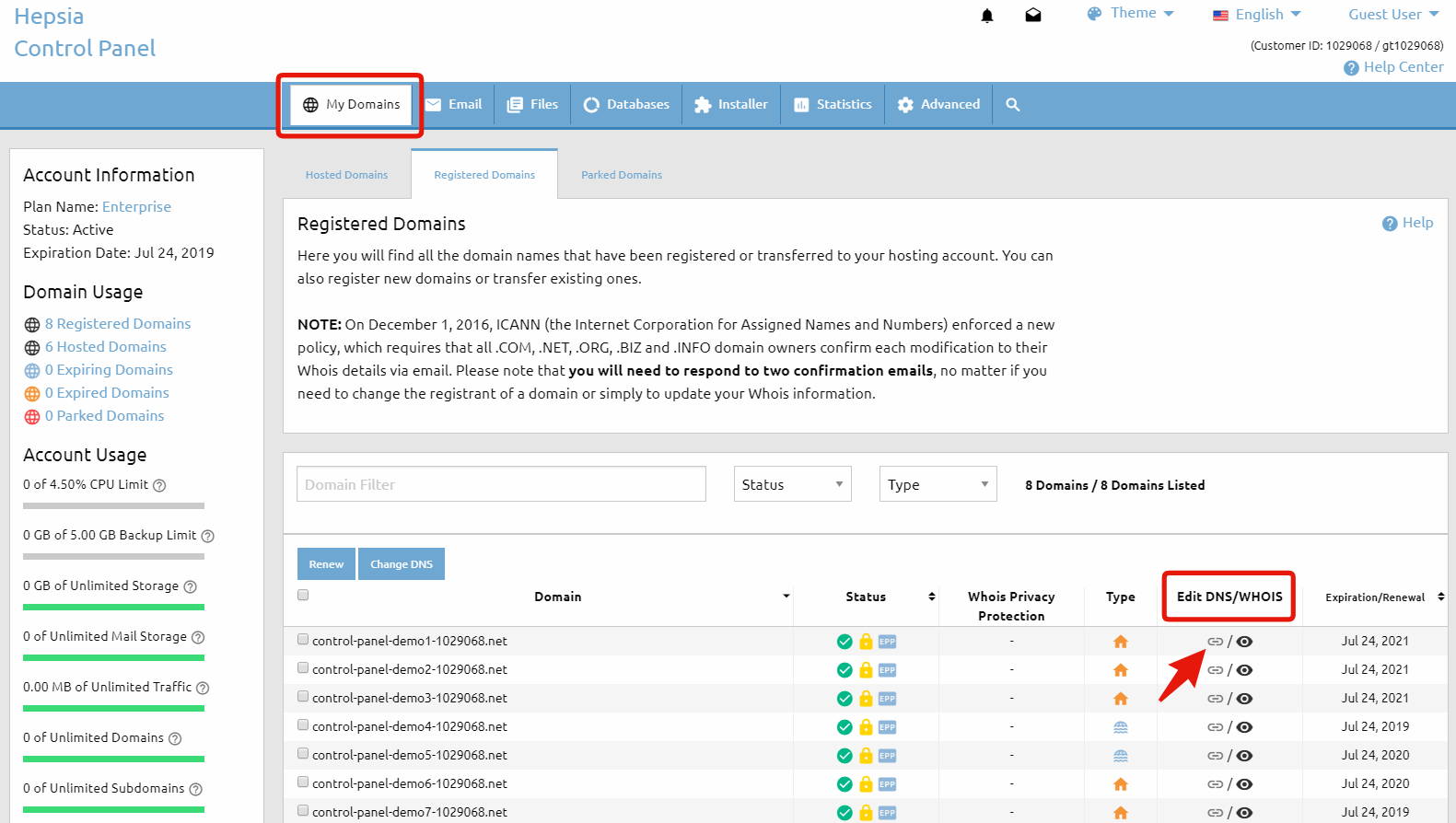
After you click the NS Status icon, a small pop-up window will appear with two options:
- Edit the name server settings
- Register your own private name servers
If you choose the first option, you’ll be redirected to the same page as in Option 1, where you can enter the new name servers.
When finished, click the Change NSes button to save your changes.
To learn more about the second option, please refer to the article: How to Register Name Servers for a Domain Name.
Option 3: Edit from the Domain Information Window
In the Domain column, click the domain name you want to edit.
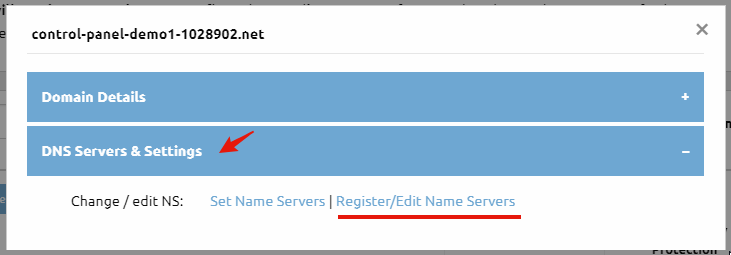
This will open the Domain Information pop-up window with details for the selected domain name. Locate the DNS Servers & Settings tab and click the Register/Edit Name Servers link.
In the Change NS tab of the Manage DNS pop-up window, enter your new name server settings and click the Change NSes button.
Important: Name server changes may take up to 24 hours to fully propagate across the internet.
Why Choose WebHost4Life for Domains and Hosting?
With WebHost4Life, you don’t just get a domain – you get a full-featured hosting solution. Our platform allows you to:
- Easily register and manage domains in one place
- Update DNS settings and name servers without technical hassle
- Host websites on secure, high-performance servers
- Enjoy 24/7 support from a team that knows web hosting
Whether you are launching your first website or managing multiple domains, WebHost4Life provides the tools and support to make domain management simple and reliable.